





Key Takeaways
-
Veo 3.1 thrives on cinematic logic. Use it as a production tool, not a search engine, to get photorealistic stability
-
Repeatable 7-layer formula: [Camera & Lens] + [Subject] + [Action & Physics] + [Environment] + [Lighting] + [Style & Texture] + [Audio]
-
Invideo adds production controls like start-to-end frames, visual ingredients, timestamping, and Extend to make cinematic scenes reliable at scale
Ever typed a prompt that sounded perfect in your head, only to get a video that looked warped? Weird lighting. Floaty motion. Something that's just off.
You're not alone. Most creators run into this because they describe abstract ideas. But with Veo 3.1 on invideo, you can bridge the gap between "generating" a clip and "directing" a scene.
The secret? It is not just about what you ask for. It is about how you ask.
Veo 3.1 works best when you speak its language. That’s why Google Veo 3 AI video feels powerful when used the right way and unpredictable when it’s not. Focus on clear camera intent, motion, and lighting, and the results stop feeling random.
Why Your Veo 3.1 Prompts Are Failing?
Because you are telling Veo what you want to see, not how the scene should be built.
To get a masterpiece, you have to view Veo 3.1 as a production system. It performs best when your input reads like a mini storyboard. And you can see the difference immediately.
For instance, here's an example of a prompt that will fail to deliver a video that's perfect from a professional lens:
What's wrong here? Unclear and blurry motion. Awkward framing. No clear focus. The AI has to guess everything.
Now compare it with this directorial prompt:
Prompt: "A cinematic close-up of a woman in a sun-drenched cafe, steam rising from a ceramic mug, shot on a 35mm lens with a slow dolly-in."
What changed? You replaced guesswork with decisions, and more importantly, directions. Once you do that consistently, results stop being one-offs and start scaling.
Here's the exact framework that makes that possible.
[Camera move + lens]: [Subject] [Action & physics], in [Setting + atmosphere], lit by [Light source]. Style: [Texture/finish]. Audio: [Dialogue/SFX/ambience].
Each part is a production pillar. Skip one, and the scene weakens. Define it all, and Veo finally has a clear direction instead of loose instructions. Let's dive deeper into each layer.
The 7 Core Elements of a Great Veo 3.1 Prompt
Veo 3.1 understands cinematic language. When you prompt across these seven layers, you give the model a clear blueprint for identity, physics, light, and motion.
1. Camera Move + Lens
This is where most prompts quietly fail.
If you do not tell Veo how the camera behaves, it defaults to generic framing. That is when shots feel flat, random, or unintentionally dramatic.
Camera position, movement, and lens choice shape emotion before the subject even acts. They decide how close the viewer feels and how they experience the scene.
That single decision turns a vague clip into a composed shot with intent.
Pro Tip: Lenses control depth, not distance. Use 16mm to expand space, 35mm for natural perspective, and 85mm to compress the background for intimacy.
2. Subject Specification
If Veo does not know precisely who or what the scene is about, everything downstream breaks. Faces drift, clothing shifts, and proportions subtly change between frames, just to name a few.
The fix is to lock the subject front-loaded at the very beginning of the prompt. A strong definition includes:
-
A clear identity anchor (person, product, or object)
-
Stable visual traits like age, build, and attire
-
The subject's role in the frame (primary focus or background presence)
Use this for the subject context: A startup founder speaking to the camera. A startup founder in his late 30s with short black hair and light stubble, wearing a charcoal cotton hoodie, speaking directly to camera
Pro Tip: Use material cues like charcoal canvas, cotton, or silk. It gives Veo a light-reflection profile that helps stabilize the subject across motion and lighting changes.
3. Action & Physics
Motion is where realism is earned or lost. Vague actions result in floaty, weightless movement because the model lacks a sense of force or resistance.
To avoid this, define how energy moves through the body using force-based verbs like push, pull, strike, slam, sway, ripple, or spiral.
Pro Tip: Avoid stacking multiple actions in one sentence. One dominant force per prompt produces cleaner, more believable motion.
4. Setting + Atmosphere
Even with a solid subject and realistic motion, a scene can still feel empty. That usually happens when the environment is treated as a backdrop instead of a system.
To avoid that, focus less on where the scene is and more on how the world behaves:
-
When the scene is happening (time of day, light quality)
-
What's in the air (fog, heat, rain, dust, haze)
-
What the background is doing (distant movement, reactions, depth cues)
Use this to give Veo a spatial context. The founder speaks in a quiet office during late afternoon, with blurred monitors glowing faintly in the background
The action doesn't change. The world does. And that's what turns a location into a scene.
5. Light Source
Lighting is what separates a cinematic shot from a generic render. Instead of describing how bright a scene is, define where the light comes from and how it behaves.
Pro Tip: Always name a light source (neon sign, cracked doorway, overcast sky). It gives Veo a physical lighting logic, which stabilizes shadows and reduces visual warping.
6. Style (Texture/Finish)
This layer is your strongest defense against the AI-plastic look.
High-fidelity visuals come from micro-details. If you don't define surface texture, Veo defaults to smooth, generic rendering.
7. Audio (Dialogue/SFX/Ambience)
Veo 3.1's audio can be more convincing than its visuals. But if sound is left undefined, clips often end up with rushed delivery, mismatched ambience, or distracting subtitles.
Always keep dialogue short. Veo clips run about 8 seconds, so write lines that sound natural in one breath. When you need a character to speak a specific line, use this structure:
[Character description] says: Your exact line here (no subtitles).
Each layer addresses a different problem. Together, they turn prompting into directing.
Here's what the same scene looks like when you apply all seven layers in a single, controlled prompt.
Prompt: Camera locked at eye level, medium close-up on a 35mm lens: a startup founder in his late 30s with short black hair and light stubble, wearing a charcoal cotton hoodie, speaking directly to camera, leaning slightly forward as he speaks, lifting one hand to emphasize a point, then relaxing back to neutral, in a quiet office during late afternoon, with blurred monitors glowing faintly in the background, lit by soft daylight from a side window with gentle fill on the opposite side and natural falloff across his face.
Style: fine skin pores, visible fabric weave, subtle contrast, no gloss or sharpening.
Audio: The founder says, "This update cuts setup time in half, helping teams get started faster." No subtitles. Soft office ambience.
Best Veo 3.1 Prompts in Action (With Real Examples)
When you use Veo 3.1 via invideo, it unlocks creative capabilities that make complex, structured sequences possible without a full production crew or manual editing.
Here's how that control shows up in real workflows.
1. Prompt for Creating a Smooth Interior Design Walkthrough with Veo 3.1
Prompt: Create a cinematic walkthrough that moves smoothly from the start frame to the end frame. Use continuous forward camera motion with gentle lateral shifts as the designer walks through multiple homes she designed. Maintain consistent lighting tone and camera height throughout. Motion should feel steady and intentional, resolving naturally into the final frame without abrupt cuts.
This walkthrough is not generated as one long clip. It is built using clip chaining, which lets you create a seamless experience by connecting short, controlled clips.
Here's how the workflow plays out:
-
Create Frame 1 and Frame 2 using Nano Banana Pro
-
Upload both frames as visual anchors and generate Clip 1
-
Reuse the final frame of Clip 1 as the starting frame for Clip 2
-
Create a new final frame for Clip 2
-
Repeat this process for more videos and then stitch all clips together
Because each clip shares a connected frame, Veo keeps the camera position, lighting, and subject identity consistent. The motion flows naturally from one space to the next, so the final video plays like a single, uninterrupted walkthrough instead of stitched shots.
This approach is especially useful for founder clips, walkthroughs, and narrative promos.
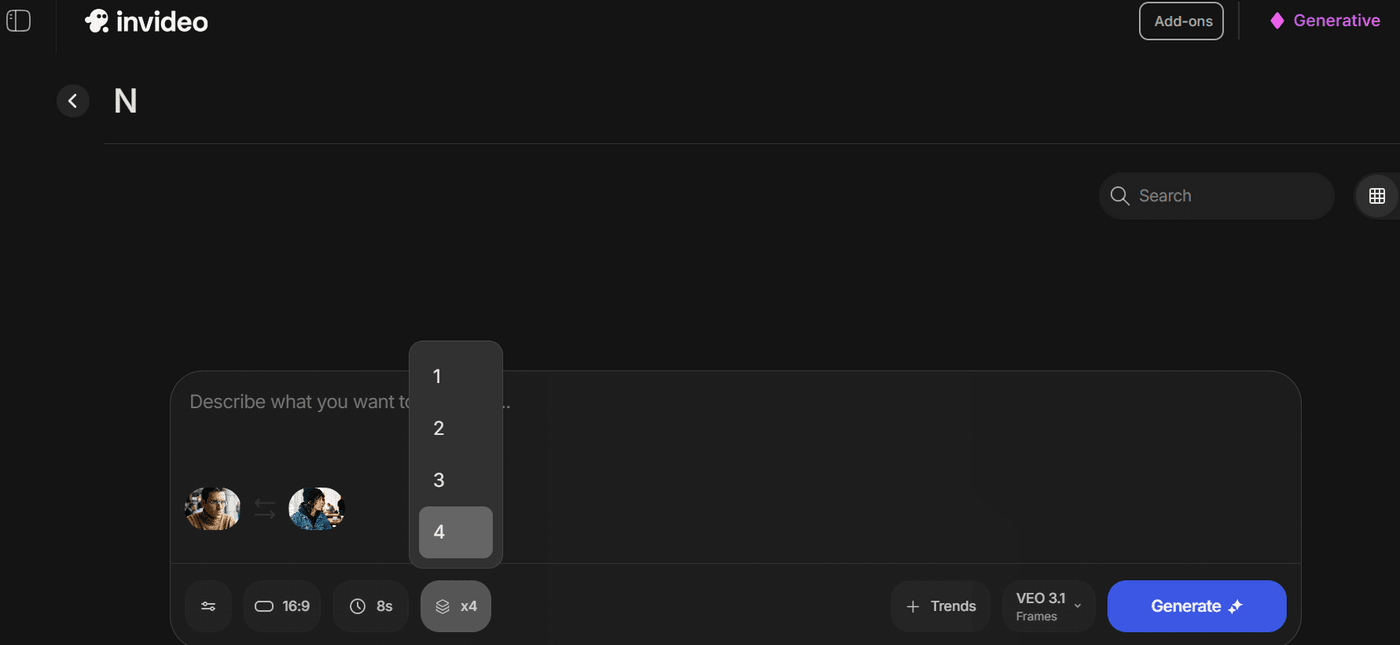
Pro Tip: Always generate in 4x mode. It uses more credits, but it saves time by giving you multiple usable variations in one pass.
2. Prompt for Creating a High-Impact Real Estate Promo with Veo 3.1
Prompt: Generate a fast-paced, high-end real estate promotional video set in San Francisco, emphasizing the competitive nature of the market. The video should feature stunning aerial and street-level shots of iconic San Francisco architecture and landmarks, notably the Golden Gate Bridge and Victorian/modern homes with scenic bay views. Include clips of luxurious interior spaces (modern kitchens, living rooms, and bathrooms with views). The video should feature several confident, professionally dressed real estate agents delivering energetic, direct-to-camera dialogue about the market's speed, the lack of inventory, and the need for buyers to act immediately. The final screen should display the company name 'GOLDEN GATE REALTY' and a call-to-action like 'Book a visit today' over a dramatic sunset shot of the Golden Gate Bridge.
When videos cut between speakers or angles, AI details often drift. Faces change slightly. Wardrobe shifts. Lighting loses direction. In business videos, these inconsistencies stand out immediately.
With Veo 3.1, dialogue scenes stay connected. Visual ingredients persist across every angle, keeping agent identity, styling, and lighting consistent.
That's why this real estate promo feels professionally produced instead of stitched together from disconnected clips.
3. Prompt for a Product Video Using Timestamp Prompting in Veo 3.1
Prompt: Create a single continuous 8-second cinematic product reveal for a premium wireless headphone. 0–3 seconds: Open on a dark, minimalist studio setup with the headphone in soft silhouette on a matte surface. Camera stays steady, building anticipation. 3–6 seconds: Introduce a slow side-light sweep as the camera gently pushes closer, revealing form, texture, and material details. 6–8 seconds: Bring the headphone fully into focus in a clean close-up. Camera settles confidently, ending with a polished, premium finish. Maintain consistent lighting tone and color throughout. Motion should feel deliberate and resolve cleanly at the end.
This product reveal works because it controls timing, not just visuals. Instead of showing everything at once, the prompt directs how the shot evolves second by second.
Many AI videos feel flat because all details appear immediately. There is no buildup and no payoff. Timestamp prompting fixes this by letting you choreograph progression inside one continuous shot. Each phase has a clear role, and Veo transitions smoothly between them.
This approach works best for product launches, hero visuals, and premium brand moments where pacing matters as much as detail.
Pro Tip: Love the product video, but want the final moment to land harder? Veo 3.1 on invideo lets you extend the same shot without breaking continuity. Camera position, lighting, subject identity, and motion direction stay locked, so the scene continues naturally.
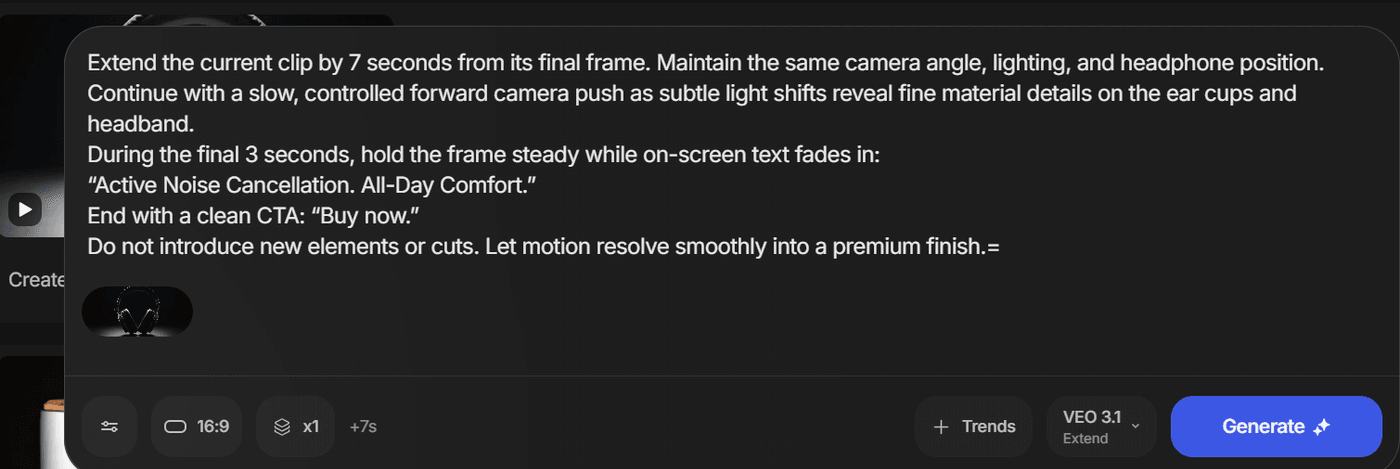
Simply select Veo 3.1 Extend, choose the clip, add a short prompt, and generate. It's ideal when a reveal feels rushed and needs just a bit more breathing room to make an impact.
Prompt: Extend the clip by 7 seconds from the final frame. Keep camera angle, lighting, and headphone position unchanged. Continue with a very slow forward drift as soft highlights move across the surface.
In the final 3 seconds, let motion settle and fade in minimal text: "Premium Sound. Built for Focus." End on a steady hold with no cuts or new elements.
Best Practices & Fixes for Clean Veo 3.1 Outputs
Even strong prompts can fail if a few production fundamentals are missing. These checks help you fix common issues fast without rewriting your prompt.
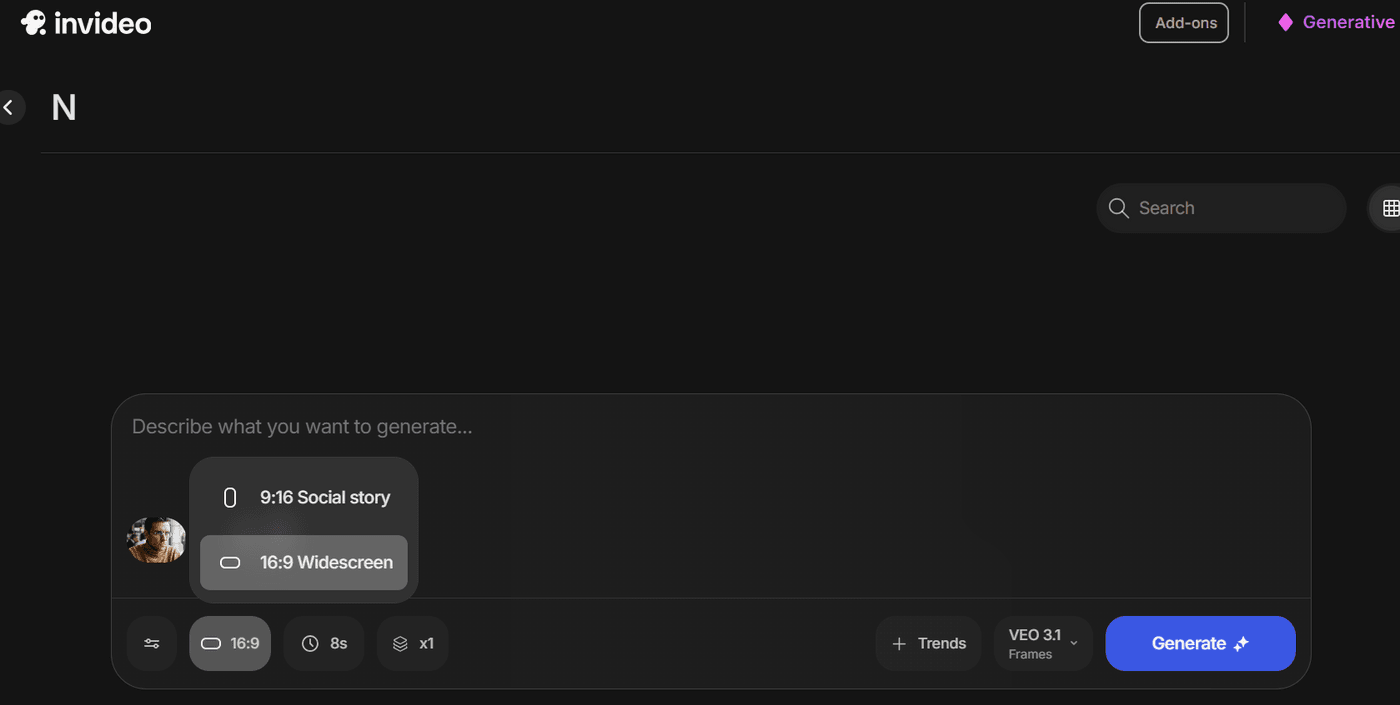
1. Choose the aspect ratio upfront
Aspect ratio is not a final export choice. It affects framing, motion, and how close the subject feels. Decide it before writing the prompt and keep it consistent.
-
9:16 works best for Insta Reels, YouTube Shorts, and TikTok, where subjects should stay centered
-
16:9 is better for YouTube, landing pages, and cinematic scenes with wider composition
2. Keep one explicit action per clip
Veo 3.1's physics engine struggles when multiple, conflicting actions happen simultaneously (e.g., a man runs while opening a bag and looking at his watch). Motion becomes unstable, and intent gets diluted.
The fix? Focus each clip on one dominant action. If you need walking, speaking, and gesturing, generate them as separate clips and sequence them later.
3. Avoid exact numbers
Most AI models process visuals, not math. When you ask for exact counts, realism often breaks. One object gets duplicated, merged, or misplaced.
Instead of "five people," use "a small group of colleagues" to give the model a range to work within while keeping the geometry stable.
4. Refine outputs with negative prompting
Negative prompting gives you control by removing what does not belong. It helps Veo avoid visual mistakes and wrong interpretations.
Use it to block:
-
Wrong styles or genres
-
Incorrect time periods, props, or gear
-
Unwanted tones like surrealism or oversaturation
For example, to keep a historical battle scene period-accurate, add this at the end of your prompt.
Negative: no sci-fi elements, no modern weapons or uniforms, no surreal visuals.
Turning Good Veo 3.1 Prompts Into Repeatable Results
Whether you're shaping mood, pacing, or visual payoff, clear intent always shows in the result.
When you treat prompts like scene directions, Veo 3.1 stops guessing and starts executing. Shots feel deliberate. Motion stays grounded. Scenes hold together.
The best part? You don't have to settle for one-off miracles. Invideo gives you the professional studio space to take these prompts and turn them into stories that look as good in the final render as they did in your head.
Explore Veo 3.1 on invideo and see what happens when structure replaces guesswork.
Also check out these related articles:
-
How to Create a Real Estate Video Using AI (Invideo+Kling 2.6/Kling O1/Veo 3.1)
-
Invideo Integrates Google Veo 3.1: The Future of Video creation isn't coming, it's here
FAQs
-
1.
Can I use Veo 3.1 videos for commercial ads and marketing?
Yes. Videos created with Veo 3.1 are designed for ads, landing pages, and social campaigns. Once generated, you can use the footage across your commercial channels.
What makes this straightforward is Google's clear stance on output ownership: you own the videos you create, and they're cleared for business purposes right out of the gate. No extra licenses or watermarks to worry about; just high-quality, customizable clips ready to drive results. For instance, brands have already leveraged Veo 3.1 for everything from punchy Instagram Reels promoting product drops to polished video testimonials on e-commerce sites.
-
2.
What is the ideal length for a Veo 3.1 clip?
It's up to 8 seconds per clip. If a moment needs more time, use Veo 3.1 Extend in invideo to add duration while keeping camera, lighting, and subject continuity.
-
3.
How to use Google Veo 3?
To use Google Veo 3, write prompts like clear scene instructions, not vague descriptions. Define the camera, subject, motion, lighting, style, and audio so the model knows exactly how to build the clip. Structured prompts lead to more stable and cinematic results.
Using Veo 3.1 in invideo makes this easier with features like start and end frames, timestamp prompting, and Extend, which help keep clips consistent.
-
4.
Is invideo beginner-friendly?
Yes. Invideo removes technical friction so beginners can create immediately, while still offering advanced controls for more complex workflows as you scale. From the moment you log in, everything's intuitive: pick a template (hundreds tailored for ads, social, explainers), type a simple prompt, and watch Veo 3.1 or other AI tools and models spit out ready-to-use clips.
-
5.
What types of videos work best with Veo 3.1 on invideo?
Founder messages, product reveals, real estate tours, social ads, and narrative promos benefit the most, especially when continuity and cinematic command matter. These formats leverage Veo 3.1's strengths in camera control, lighting, and physics to deliver pro-level results.
-
6.
Can I reuse the same prompt structure across different Veo 3.1 videos?
Yes. Once you understand the 7 core elements of Veo 3.1 prompting, you can reuse the structure across formats by swapping subject, setting, and pacing. This works especially well for marketers producing social ads, product demos, or series content.
