invideo Editor vs OpusClip: Editing Long Videos into Shorts
October 15, 2026

invideo Editor and OpusClip are popular platforms for turning long videos into Shorts. This guide compares how they find clips, revise cuts, reframe footage, add captions and B-roll, finish audio, and handle delivery and pricing. Below is a feature-by-feature comparison to help you choose the workflow that fits your source videos and editing needs.
invideo Editor and OpusClip are two popular platforms for editing long videos into Shorts. Whether you’re repurposing a podcast, an interview or a recorded demonstration, both use AI to help you find useful moments and turn them into videos for a short-form audience.
Choosing between them comes down to which platform helps you turn a long recording into polished Shorts with the least manual intervention. We’ll compare how each handles the work involved, from refining an opening and keeping the action visible in a vertical frame to adding captions, B-roll and sound. We’ll also look at editing control, publishing options and pricing to help you choose the workflow that fits your videos.
invideo Editor vs OpusClip at a glance
invideo Editor combines a built-in editing agent with a frame-accurate multitrack timeline you can edit manually for free. You can assign an edit, inspect its layers and continue through instructions or manual controls. OpusClip centers on long-video repurposing, with AI clip discovery, a paid clip editor and social distribution tools.
Editing job | invideo Editor | OpusClip |
|---|---|---|
Finding moments | More upfront direction with briefing and beat selection before the edit, which can mean fewer unwanted edits to discard or revise. | Less initial planning and a broad pool of highlights, but weak selections or missing context can mean more cleanup. |
Revising a cut | Greater flexibility for revisions spanning source timing, graphics and sound, with agent assistance and full manual controls available for free. | Good for minor trims or quick alternate versions on a paid plan, but coordinating footage, graphics and sound can require more manual work. |
Reframing for portrait | The ideal choice when composition needs to follow a demonstration or moving action, with precise control over framing and timing. | Convenient for automatic speaker crops and repeatable layouts, with subject tracking on Pro; hands, objects or supporting action may still need framing corrections. |
Adding captions and graphics | The stronger choice for custom explanatory labels, layered graphics and animation, with precise control over timing, styling and placement. | Good for a consistent caption-led format, but caption corrections in the web editor remain a clip-by-clip task. |
Adding supporting visuals | More creative flexibility to generate B-roll around the footage, with broad model choice and precise framing. | Convenient for automatic stock and AI B-roll, with prompt and framing adjustments, but applying changes across a batch takes individual clip work. |
Finishing sound | Greater control over how voice, music and effects work together, combining agent assistance with manual levels, fades, EQ and dynamics. | Useful for speech cleanup, music and adjustable Auto SFX on Pro and Business, but detailed mixing may require another editor. |
Delivering the batch | Flexible handoffs through finished videos and editable projects, but social posting and scheduling happen separately. | A clear advantage for recurring social publishing, with posting and Pro scheduling in the same workflow. |
Budgeting the work | Free manual editing and watermark-free exports, with no additional invideo charge for editing through Claude or ChatGPT via MCP. Built-in agent work and media generation use credits. | Paid editing and watermark-free clips, with better value when integrated publishing is part of the regular workflow. |
Finding clips: automatic discovery vs an editorial brief
The first job is to find a complete idea inside a longer recording. A useful clip needs enough setup for a new viewer and an ending that delivers on its opening. Here’s how both tools approach this:
In OpusClip, you submit the recording to its clipping workflow and use selection prompts to describe the moments you want. ClipAnything considers visual and audio information as well as speech. You then review its candidates, retain useful selections and refine them in the paid editor.
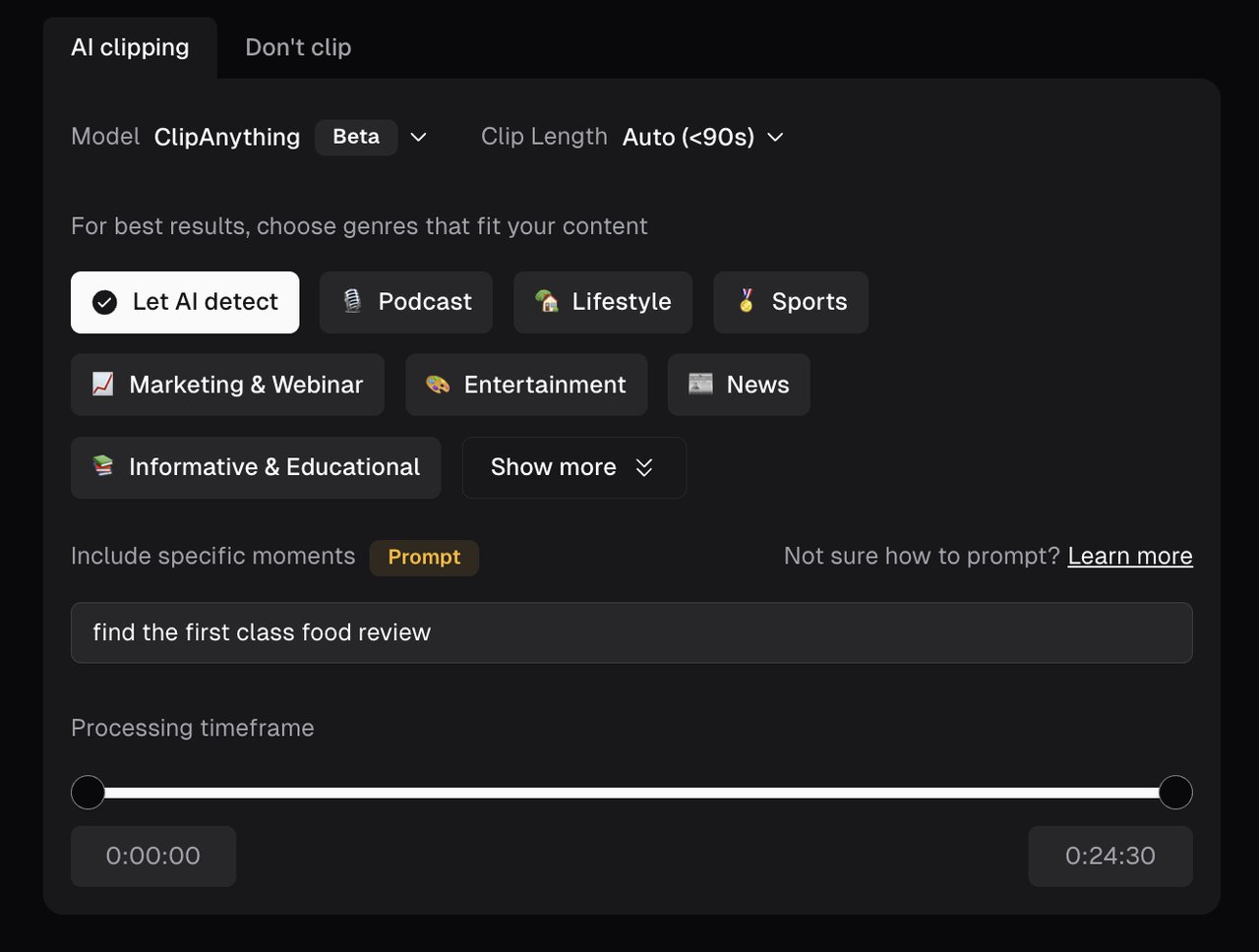
OpusClip’s ClipAnything prompt and genre controls. Source: OpusClip’s selection-prompt guide.
In invideo Editor, you upload the recording and ask the agent to explore interesting themes before committing to specific clips. It can suggest ideas, identify the story beats that support them and flag where the footage needs more context.
For example: “Look through this interview for surprising opinions, unexpected lessons and stories worth sharing. Suggest possible Short ideas and the beats that could support each. Flag ideas that don’t have enough material to work on their own.”
You review the possibilities, choose the strongest ideas and agree on their structure before editing begins. Our long-video-to-Shorts guide explains how those selections develop into separate cuts.

Illustration: three story themes marked on the source timeline before developing separate Shorts. Source: invideo’s long-video-to-Shorts guide.
Verdict: OpusClip is better suited to generating highlights in bulk. invideo is the stronger choice for a focused set of carefully developed Shorts, with the ideas and story beats settled before editing begins.
Editing the selected clips: how much can you change?
A selected moment may start too late, lose a qualification or need a different hook. Below we will compare how easy it is for you to make that revision while keeping a version you already like.
In OpusClip, editing is a paid feature. Its trim-and-extend workflow and text or timeline controls let you shorten a passage, rearrange scenes or bring in more source material. You can also duplicate a clip before changing it, giving you an independent version to try another opening while retaining the original.

Official OpusClip product graphic showing timeline editing with scenes, B-roll and transitions. Source: OpusClip’s editor page.
OpusClip also offers AI Producer, a separate workflow where you request revisions through chat. Its current scope is single-speaker footage up to five minutes and 1.99 GB, without multicamera edits or screen recordings. These limits apply to AI Producer, not the long-video clipper.
In invideo Editor, you keep each Short on a named timeline and tell the agent which one to revise, what to change and what to preserve. A revision can cover the source selection, graphics and sound together. You can then refine individual cuts, layers or animations manually for free and continue directing the agent from that updated timeline.
For example: “On ‘Unexpected Lessons,’ remove the interviewer’s opening question and start with the guest describing their mistake. Keep the explanation of how they corrected it and the closing advice. Change the opening title to ‘What I’d do differently,’ and leave the other shots unchanged.”
You review the revised opening alongside the elements you asked to preserve. If one cut still needs adjusting, you can change it directly for free without requesting another agent pass.
Illustration from our long-video guide: the full conservation podcast and three Short timelines show how separate versions can be organized. The pictured project is separate from the interview example.
Verdict: OpusClip suits minor trims and alternate versions within its clip workflow. invideo offers greater flexibility when a revision spans the story, graphics and sound, with agent assistance and full manual controls.
Reframing for Shorts: keeping the subject and action visible
A portrait crop can retain a face while cutting off the thing being demonstrated. Let’s see how both tools handle reframing and composition:
In OpusClip, you start with automatic reframing, then use Layout to change a selected scene. B-roll segments offer fill, picture-in-picture and stacked split layouts, subject to the documented format restrictions. You can also adjust framing manually on a paid plan. On Pro, Subject Tracking lets you select a person or object for the frame to follow. This gives you a direct way to keep a speaker visible alongside supporting material.
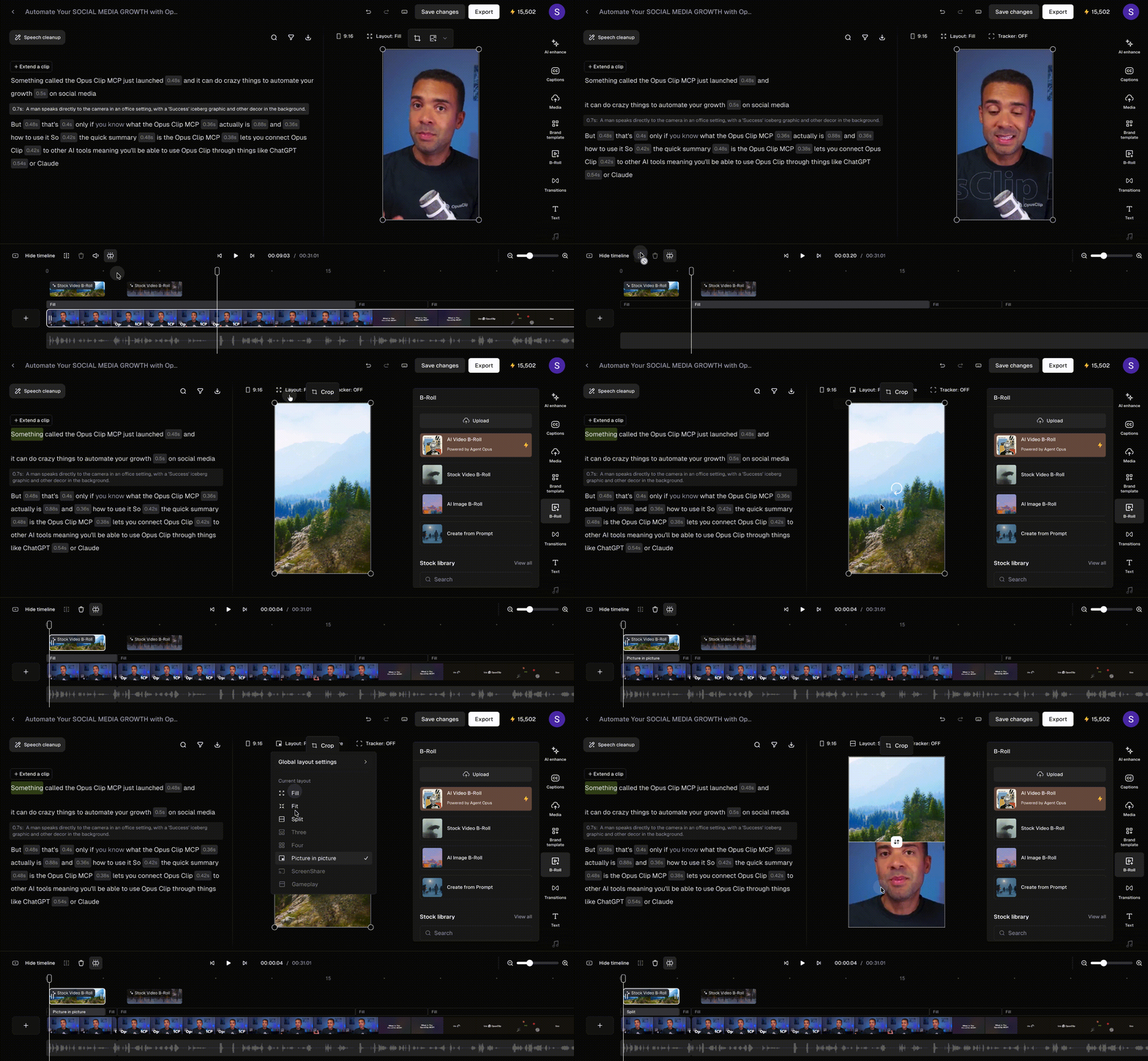
OpusClip’s B-roll layout walkthrough shows fill, picture-in-picture and split framing. Source: OpusClip’s layout guide.
In invideo Editor, you direct the framing as part of the edit. You can ask the agent to follow a person, object or action, for example, keeping the presenter’s hands visible during a demonstration, then widening for the explanation. If needed, you can refine position, scale or keyframes manually for free.

Official invideo product image showing transform and keyframe controls for adjusting position, scale and motion. It shows the controls, not a tested portrait-crop result.
Try the same correction in either workflow: keep both the presenter’s hand and the part being adjusted visible. If a crop cannot do that, retain a wider view or use a layout that shows both. Watch the entire action at phone size, since one well-framed still does not establish that the moving shot works.
Verdict: OpusClip is convenient for automatically resizing edits, but custom subject tracking requires Pro or above. invideo is the stronger choice when you need to control what stays visible and when the framing changes. You can use its built-in agent, refine manually for free, or edit through Claude or ChatGPT via its free MCP connection.
Captions and graphics: Styling and individual labels
Dialogue captions, a part label and an opening headline do different jobs. Below we compare how each tool lets you correct the words, place the text and control when it appears.
In OpusClip, you select words in the caption editor to correct them, then adjust appearance and placement. Brand templates help establish a repeatable format. Its Text panel also supports separate overlays, including headlines and name tags. Up to five can overlap, each on its own timeline track; their edges control duration. However, these editing controls require a paid plan.
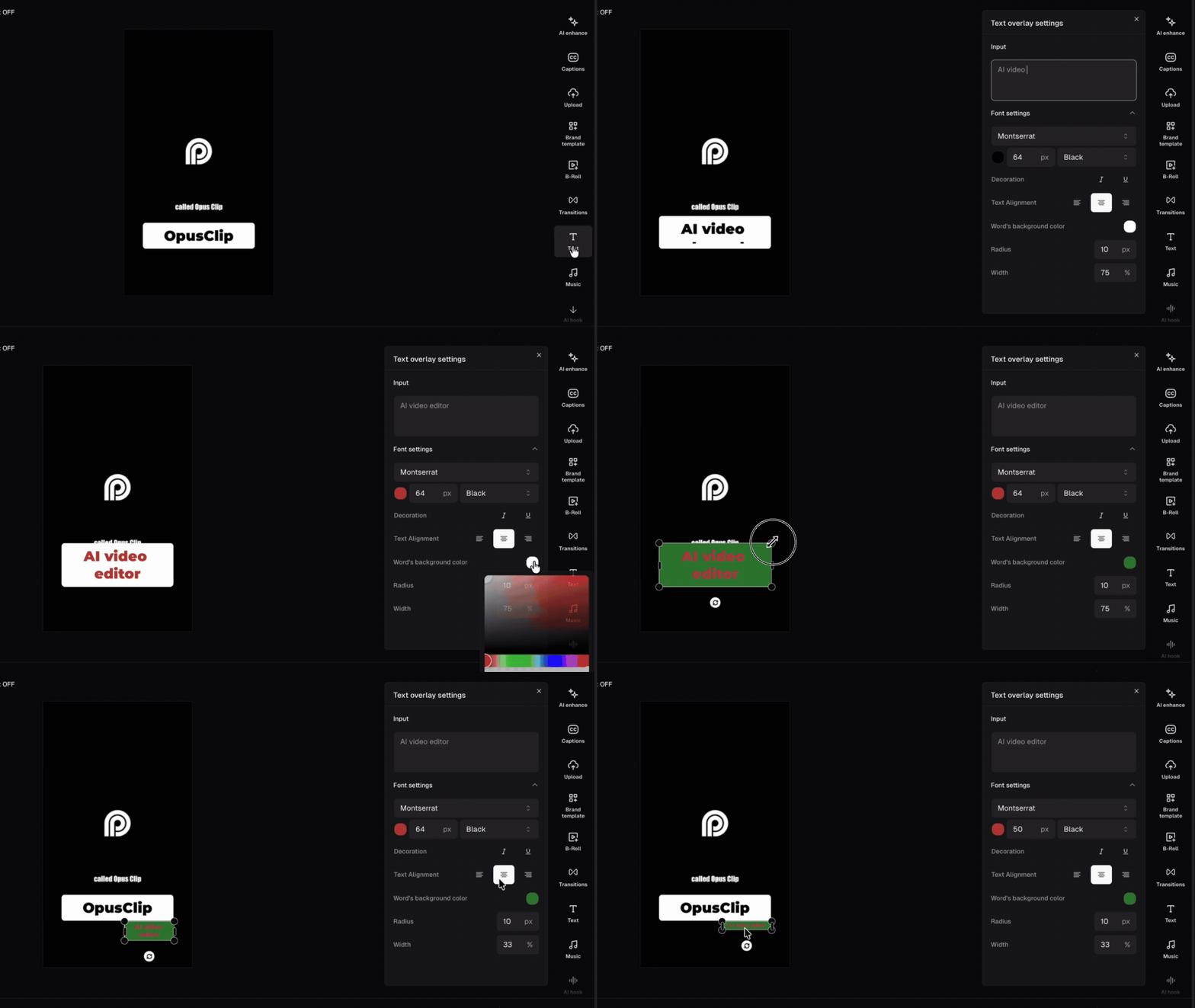
OpusClip’s text-overlay walkthrough shows a separate title with editable styling and placement. Source: OpusClip’s text-overlay guide.
In invideo Editor, you ask the agent for captions, custom graphics, overlays and animations based on your edit. You can describe the look you want or share a visual reference, then have it build those elements on the timeline. That could mean labels beside specific objects or animated callouts timed to each step. You can also refine each layer’s timing, styling, placement and motion manually for free. This YouTube Short editing guide explains how to develop text alongside framing and sound.

Verdict: Choose OpusClip for popular caption templates, though caption corrections require a paid plan and remain a clip-by-clip task in the web editor. invideo provides more creative control over custom graphics, overlays and animations tailored to your footage, with free manual refinements and agent assistance to apply changes across multiple clips.
B-roll and visual editing: adding context to the selected moment
A useful cutaway shows what the speaker means. It may come from the same recording, a second camera, stock footage or generated media. Let’s compare how both tools add these visuals and let you refine their timing and framing:
In OpusClip, you use B-Roll to add stock or AI-generated visuals, then review their placement. You can move, trim, extend and reframe the result, or revise the prompt for generated visuals. Its custom-media workflow also lets you add your own images and video, then adjust them in the editor. Access and allowances depend on the plan.
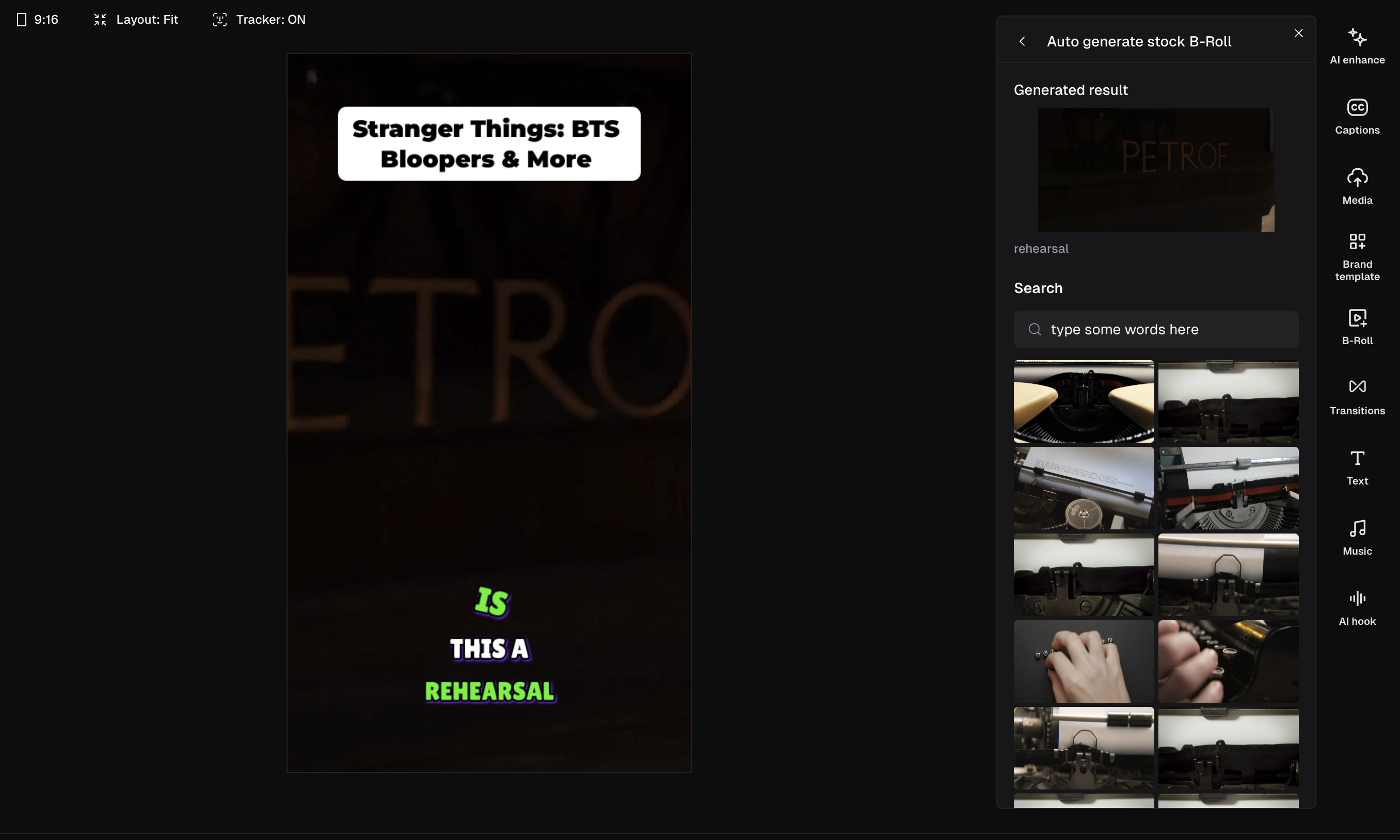
OpusClip’s stock B-roll search and replacement panel. Source: OpusClip’s B-roll guide.
In invideo Editor, you can ask the agent to use another shot from your recording, source stock B-roll or generate custom B-roll with AI. For generated visuals, you can choose from multiple models and specify the content, style and framing. The agent can place the cutaway over the relevant explanation while keeping the original dialogue underneath. If the result needs adjusting, you can fine-tune the shot’s timing, framing, colour and transitions directly on the timeline.

Verdict: OpusClip offers a convenient route to stock and AI B-roll, though changes are handled clip by clip. invideo gives you broad model choice for custom visuals and more control over how they fit into the wider edit.
Audio editing: Adding music, sound effects and control over the mix
Adding a music bed is one task. Preserving a demonstration sound, cleaning speech and changing the balance during a sentence require more specific controls. Here’s how both tools handle these tasks and let you refine the mix:
In OpusClip, you use the Audio panel for music and the available speech tools for voice treatment. On Pro and Business, Auto SFX adds effects as separate timeline blocks. You can select a block to change its volume or duration, or revise its prompt and regenerate that sound. AI Producer also offers voice cleanup, music and sound treatments for eligible footage.
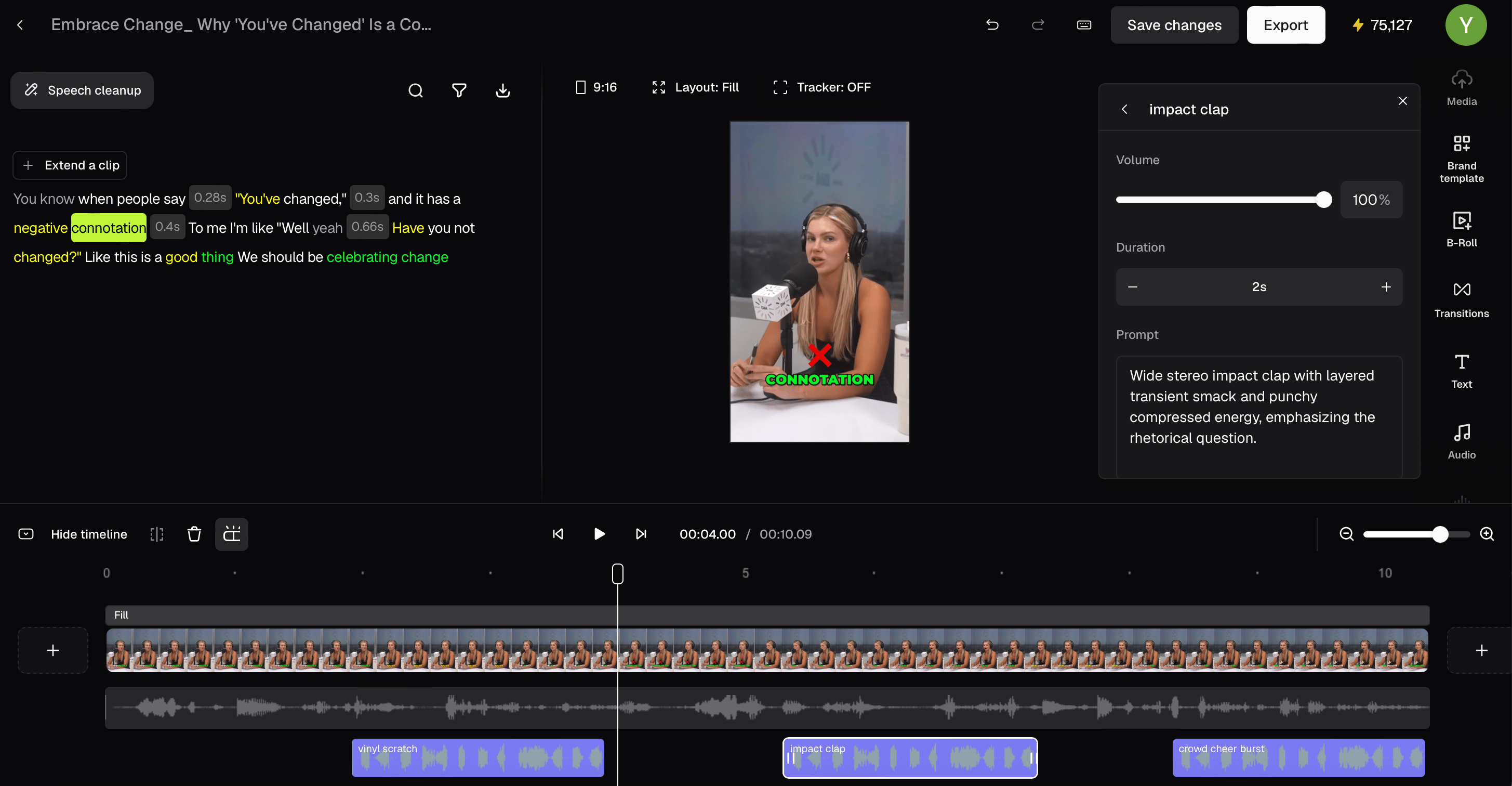
OpusClip’s Auto SFX timeline and per-effect volume, duration and prompt controls. Source: OpusClip’s Auto SFX guide.
In invideo Editor, you direct the agent to develop the sound, then refine it in the audio workspace. Separate voice, music and effects tracks have manual level, fade, EQ and dynamics controls. The sound-design workflow also supports sourcing or generating audio and revising its placement.

Official invideo product image showing audio layers, mixer strips and clip controls for manual finishing. The pictured project is separate from the examples in this comparison.
Verdict: OpusClip covers music, speech treatment and editable generated effects. invideo suits an editor who wants a fuller manual audio workstation alongside agent-directed sound work. Listen to the result before deciding which treatment works better on your source.
Exporting and publishing: finished files or a scheduled pipeline?
A batch is not complete until it reaches the person or channel that needs it. Here’s how both tools handle finished files, editable handoffs and social publishing:
In OpusClip, you download the finished clips or use its social posting workflow. Pro adds a scheduler: you select a connected account, customize the post and set its publication time. Pro also lists Premiere Pro and DaVinci Resolve export for continued editing.
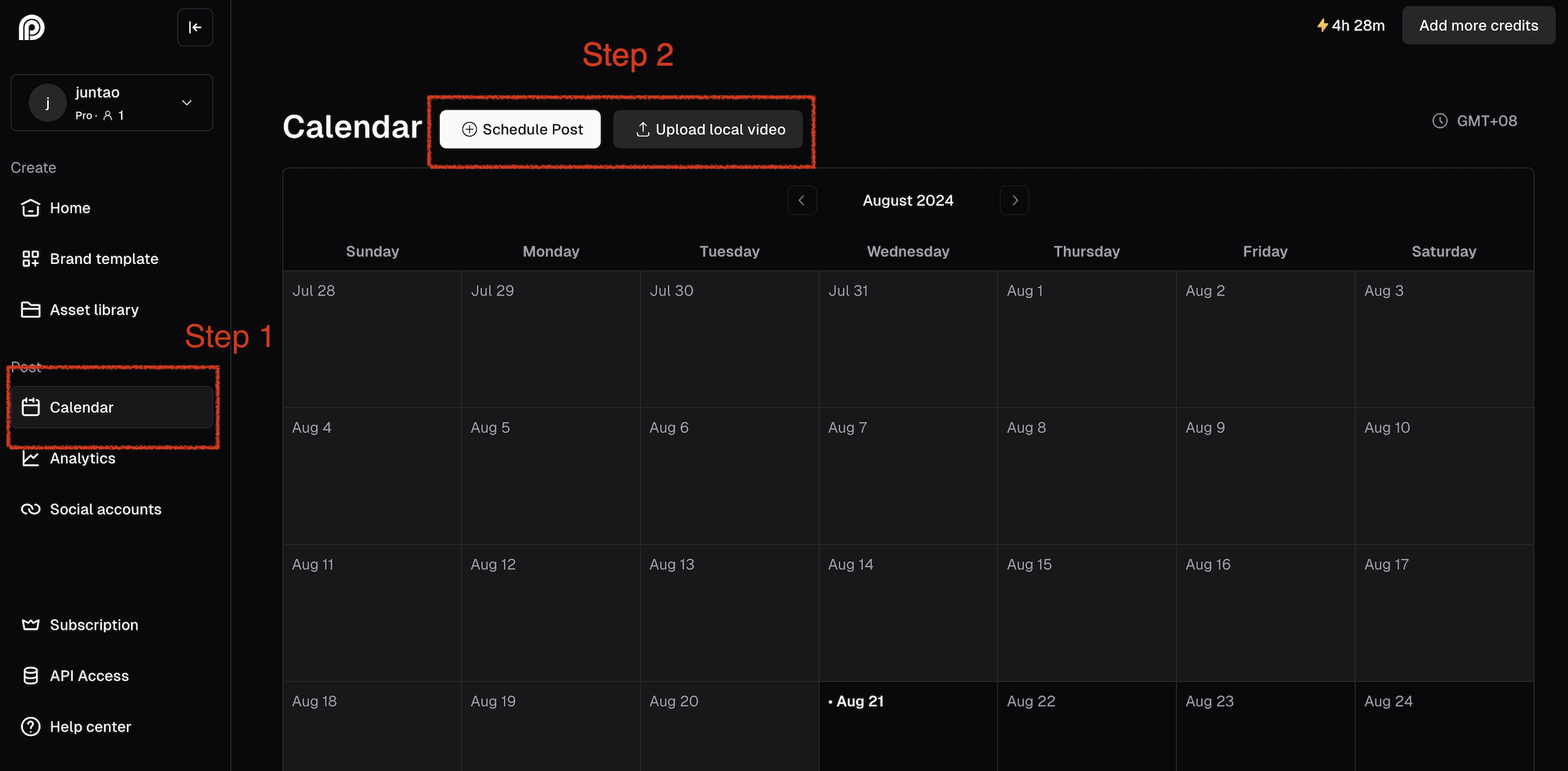
OpusClip’s scheduling calendar, with controls to schedule a post or upload a local video. Source: OpusClip’s scheduling guide.
In invideo Editor, you export each finished Short as an H.264 MP4, review it and upload it through your publishing workflow. Its editable-project export provides FCP7 XML for Premiere Pro/Final Cut Pro and OpenTimelineIO for Resolve, with media included.

Verdict: Both products support finished-video and editable-project handoffs. OpusClip Pro has the advantage for recurring social publishing, with clipping, posting and scheduling in one workflow. invideo suits work centered on finishing and handing over the edit, with social publishing handled separately.
Pricing: pay for the workflow you need
The cost depends on how you edit: manually, through an assistant you already use, or with the platform’s built-in AI tools. Here’s how free access, paid plans and credit charges compare. Prices are in US dollars, checked on 16 October 2026.
Budget question | invideo Editor | OpusClip |
|---|---|---|
Can I edit and export for free? | Manual editing and watermark-free video export are free. | Free includes 60 monthly credits, watermarked clips, no editing and a three-day export window. |
Can I use my existing Claude or ChatGPT subscription? | Ordinary editing through MCP has no additional invideo charge. Your assistant’s subscription and usage limits apply. | Yes, through MCP on eligible paid plans; clipping uses OpusClip credits. |
What does entry-level paid access cover? | Starter includes 400 credits per seat/month and Lite agent access: $10 per seat/month, billed annually. | Starter includes 150 monthly credits, editing and watermark-free clips: $15 billed monthly. |
What if I need more agent or publishing tools? | Plus includes 2,000 credits per seat/month and Lite, Pro and Ultra agent access: $30 per seat/month, billed annually. | Pro includes 300 monthly credits, scheduling and editable export: $29 monthly or $174 annually. |
The displayed invideo promotional annual prices total $120 per Starter seat or $360 per Plus seat, paid upfront for the year. Check the selected billing period and offer before comparing them with OpusClip’s monthly plans.
In OpusClip, the Free plan lets you generate clips but does not include editing. You need Starter or above to revise them in the editor. Ordinary clipping uses one credit per imported source minute, so a 30-minute recording uses 30 clipping credits. AI Producer uses the same account credits, charged in stages as its work runs. OpusClip also offers MCP access on eligible paid plans.
In invideo Editor, manual editing is free. You can also connect Claude or ChatGPT through MCP and delegate ordinary editing without an additional invideo editing charge. If you already subscribe to either assistant, your existing subscription cost and usage limits apply.
Work assigned to invideo’s built-in agent uses invideo credits. Generating new images, video or audio also uses invideo credits, including when requested through MCP.
Verdict: invideo gives users free manual editing and watermark-free exports while giving existing Claude or ChatGPT subscribers a way to delegate editing without adding another editing subscription. OpusClip requires a paid plan for editing; Pro adds value when you also need integrated social scheduling.
Which should you choose?
Go with invideo Editor for more control over each edit's story, framing, graphics and sound. Build and revise the edit with its built-in agent, or connect Claude or ChatGPT through its free MCP connection. You can fine-tune every cut, layer and sound with the full manual editing suite for free.
Go with OpusClip if your main task is finding candidate highlights, applying a repeatable social format and scheduling the approved batch. However, refining those clips before publishing requires a paid plan.
Frequently asked questions
Can I edit OpusClip’s clips after AI selects them?
Yes. Paid plans offer text and timeline editing. You can refine the source selection and duplicate a clip for an independent version. The Free plan’s editing restriction does not describe the paid editor.
Is invideo Editor free for making Shorts with AI?
Manual editing and watermark-free exports are free. Editing through Claude or ChatGPT via MCP also has no additional invideo charge; your assistant’s plan and usage limits apply. Work assigned to invideo’s built-in agent and generating new images, video or audio use invideo credits.
Do I need ChatGPT or Claude to use invideo Editor?
No. You can edit manually without either assistant. If you already subscribe to Claude or ChatGPT, invideo’s free MCP connection lets you delegate editing without adding another editing subscription. Alternatively, you can use invideo’s built-in agent to handle the edit using invideo credits.
Can OpusClip AI Producer accept a full long recording?
Its current guide limits AI Producer to single-speaker footage up to five minutes and 1.99 GB. Longer recordings belong in OpusClip’s separate long-video clipping workflow; the AI Producer limit does not apply to that clipper.